This tutorial shows step-by-step instructions on how to use RockChip Factory Tool to install or flash stock ROM firmware on Android smartphones and tablets.

Before we proceed to flash stock firmware using RockChip Factory Tool, we have to follow the below-listed preparation steps to prepare the device for the flashing process.
Preparation:
- Make a complete backup of your data to a safe place as flashing Stock ROM will wipe all of your data.
- Make sure your phone or tablet is charged to at least 60%-70% before flashing ROM.
How to Flash .img or .bin Firmware using RockChip Factory Tool
Step 1: Download and install the RockChip Driver Assistant on your computer to install the required Android drivers. If you already have RockChip Drivers installed on your computer, then you can skip this step.

Step 2: Download and extract Android Stock Firmware for your smartphone or tablet from here to your computer.
Step 3: Download and extract the RockChip Factory Tool on your computer. After extracting, you will find files, as shown in the image below.

Step 4: Now run FactoryTool.exe to launch the RockChip Factory Tool.

Step 5: Once the RockChip Factory Tool opens, change the Language of the application to English. Click on the Language button and choose the second option as shown in the image below.


Step 6: Now, click on the Firmware button and locate the .img or .bin firmware file from the ROM folder which you have extracted in Step #2.

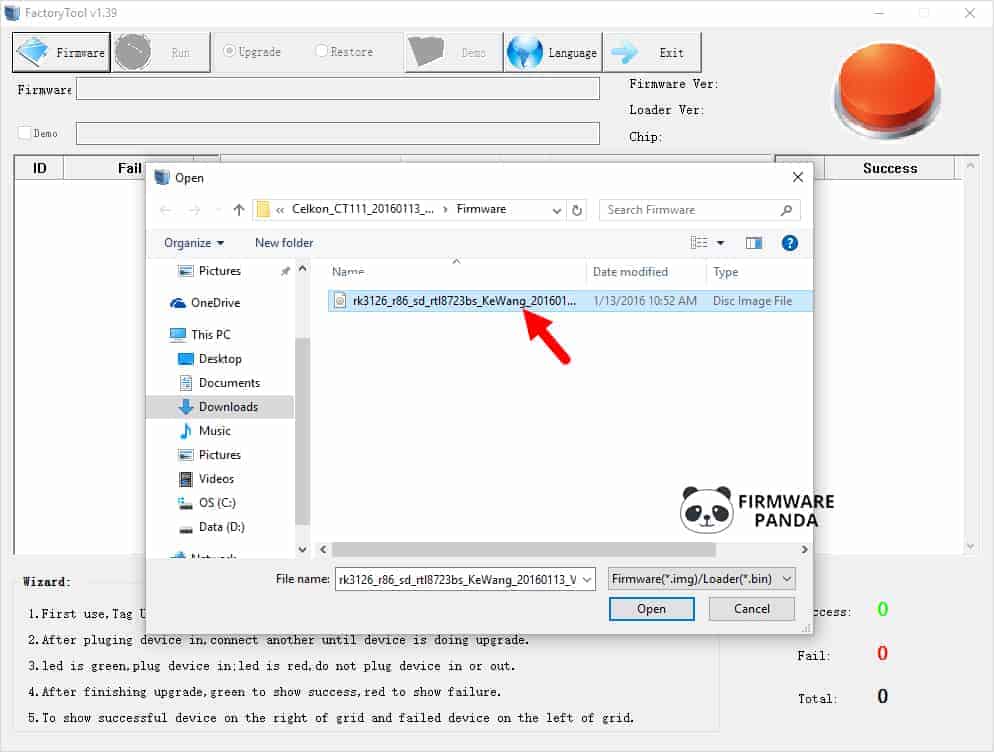
Step 7: Once you have loaded the firmware in the RockChip Factory Tool, it will automatically show the Firmware version, Loader version, and the Chip Type.
Step 8: Now, power off your phone and press and hold the Volume UP button, and connect it to the Computer using a USB cable.

Step 9: Now, your device will be listed under Device Type as Loader, which means you are ready to flash or install the firmware.

Step 10: Click on the Run button to begin the flashing process.

Step 11: Now, the firmware flashing process will start, and it usually takes 5-10 minutes to complete.

Step 12: When the flashing or installation process is completed, you will see the Green Success message on the Right Panel of the RockChip Factory Tool.

Step 13: Disconnect your phone or tablet from the computer and restart it.
Congratulations! Now you have successfully flashed Stock ROM using RockChip Factory Tool on an Android Smartphone or Tablet.