These are the complete step by step instructions on how to flash Stock ROM on Android Smartphone or Tablet using Qualfast Tool on Windows Computer.
Before proceeding to flash Stock ROM firmware on Android phone using Qualfast Tool, follow the below preparation steps for smoother flashing process.
Preparations:
- Backup all of your important data to a safe place as firmware flashing will wipe all of your data.
- Make sure your phone or tablet is charged to at least 50-60% before proceeding with the flashing process.
How to Flash Stock ROM using Qualfast Tool
Step 1: Download and install the required Android USB Drivers on your computer. If you already have the USB Drivers installed, then skip this step.

Step 2: Download and extract Android Stock Firmware for your Smartphone or Tablet from here to your computer.
Step 3: Download and extract Qualfast Tool (Link) on your computer.

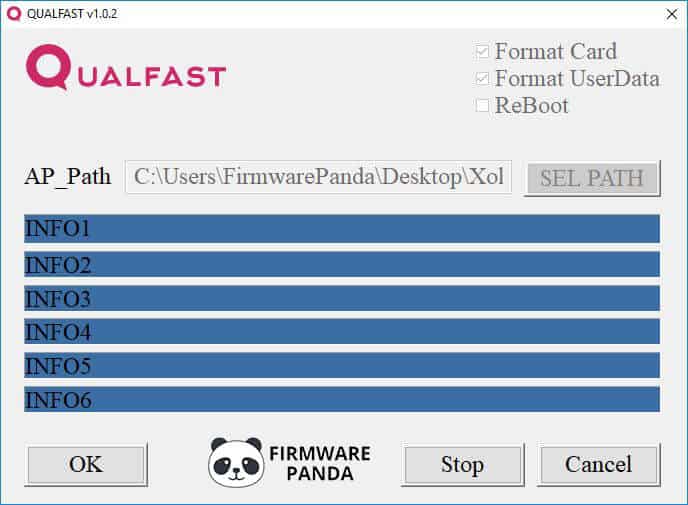
Step 4: Now, open Qualfast software on your computer. After it launches, you’ll see the below window.
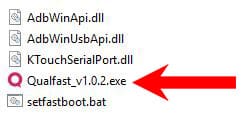
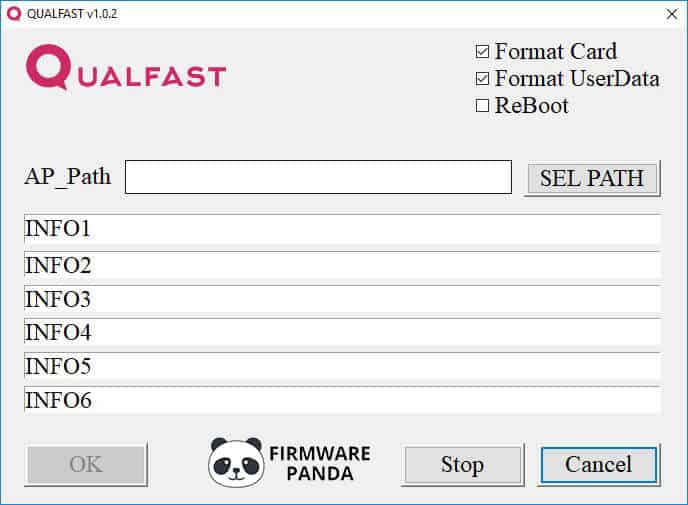
Step 5: Now, click on the “SEL PATH” button and select the Firmware folder which you have extracted in Step #2.
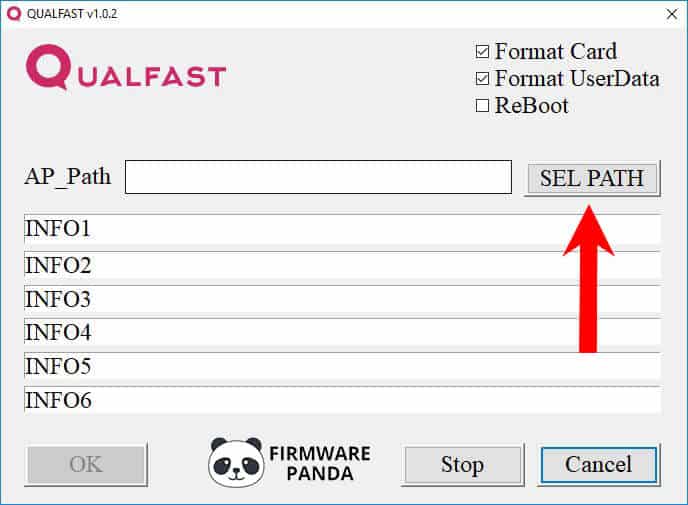

Step 6: Once you have located and added the Firmware folder, the AP Path in Qualfast Tool Software is set automatically, and the info boxes turn Blue.
Step 7: Now, power off your Android phone.
Step 8: Now, Enable AP Mode on your phone by pressing and holding Volume Up, and Power buttons together until the AP Mode is enabled.
Step 9: Once the AP Mode is enabled, connect your phone to the computer using a suitable USB data cable.

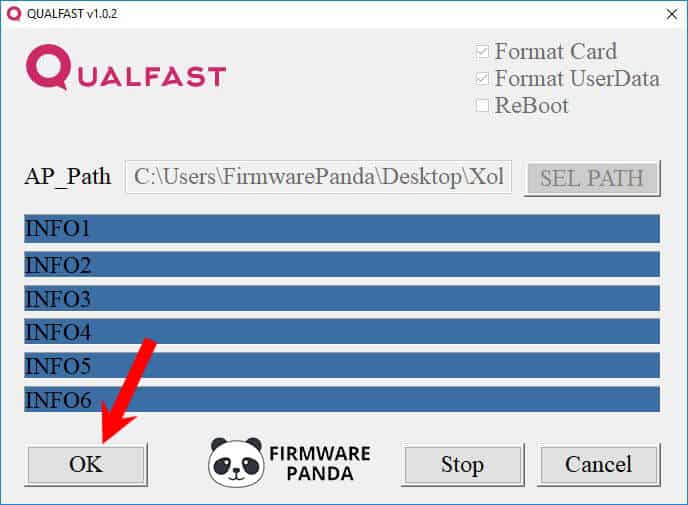
Step 10: Now, in Qualfast Software, click “OK” to begin the flashing process.
Step 11: Once the firmware flashing process completes, you will see a Green Box in Qualfast.

Step 12: Now, close the Qualfast Software Tool on your computer and disconnect the phone and reboot it.
Congratulations! Now you have successfully flashed stock ROM firmware on Android Phone or Tablet using Qualfast Tool.