Here is the complete step by step guide on how to flash Stock ROM on Intel Chipset based Android Smartphones using Intel Phone Flash Tool (Intel Platform Flash Tool).
Before proceeding to flash Stock ROM firmware on your Intel Android phone using Intel Platform Flash Tool (Intel Phone Flash Tool), follow the below preparation steps for smoother flashing process.
Preparations:
- Backup all of your important data to a safe place as firmware flashing will wipe all of your data.
- Make sure your Intel phone or tablet is charged to at least 50-60% before proceeding with the flashing process.
How to Flash Stock Firmware using Intel Platform Flash Tool
Step 1: Download and install Intel USB Drivers on your computer. If you already have the drivers installed, then skip this step.

Step 2: Download and extract Intel Android Stock Firmware for your Smartphone or tablet from here to your computer.
Step 3: Download and install the Intel Platform Flash Tool on your computer.

Step 4: Once the installation is complete, open the Intel Phone Flash Tool on your computer.

Step 5: Once the Intel Flash Tool launches, click on the “Browse” button from the top right corner.
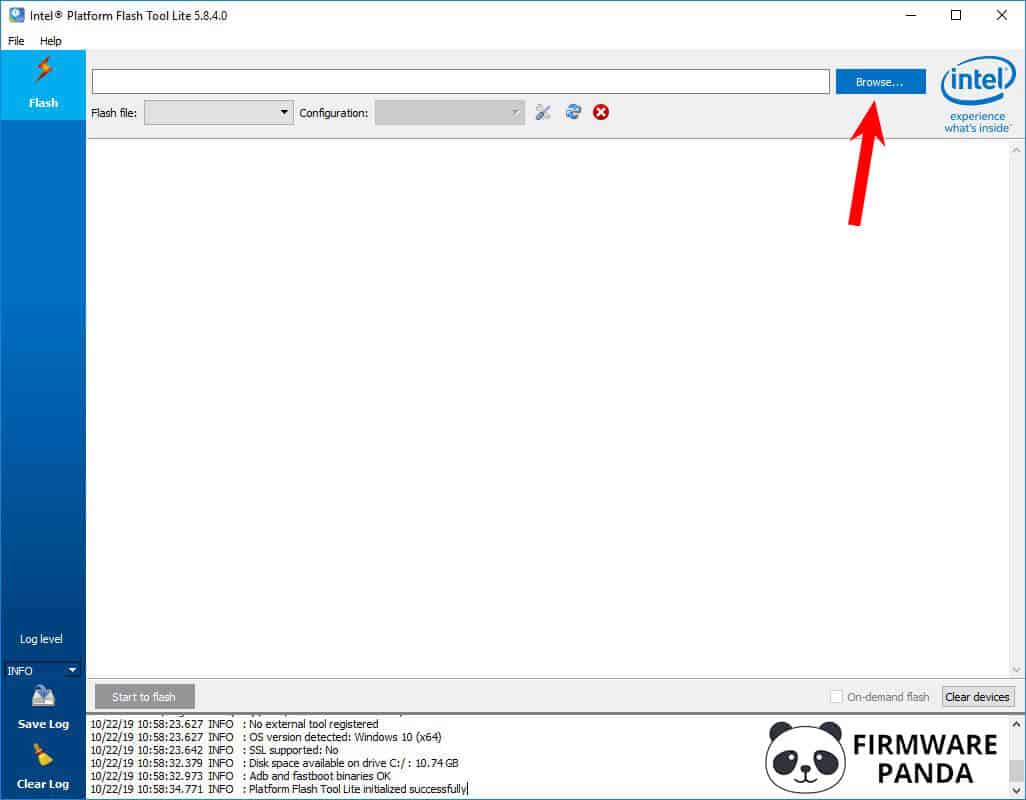
Step 6: Now locate the “flash.xml” file from the firmware folder which you have extracted in Step #2.

Step 7: Power off your Intel phone and connect it to the computer.

Step 8: Once the phone is connected, the Intel Platform Flash Tool will show it in the blank area.

Step 9: Now click on the “Start to flash” button to begin the flashing process.
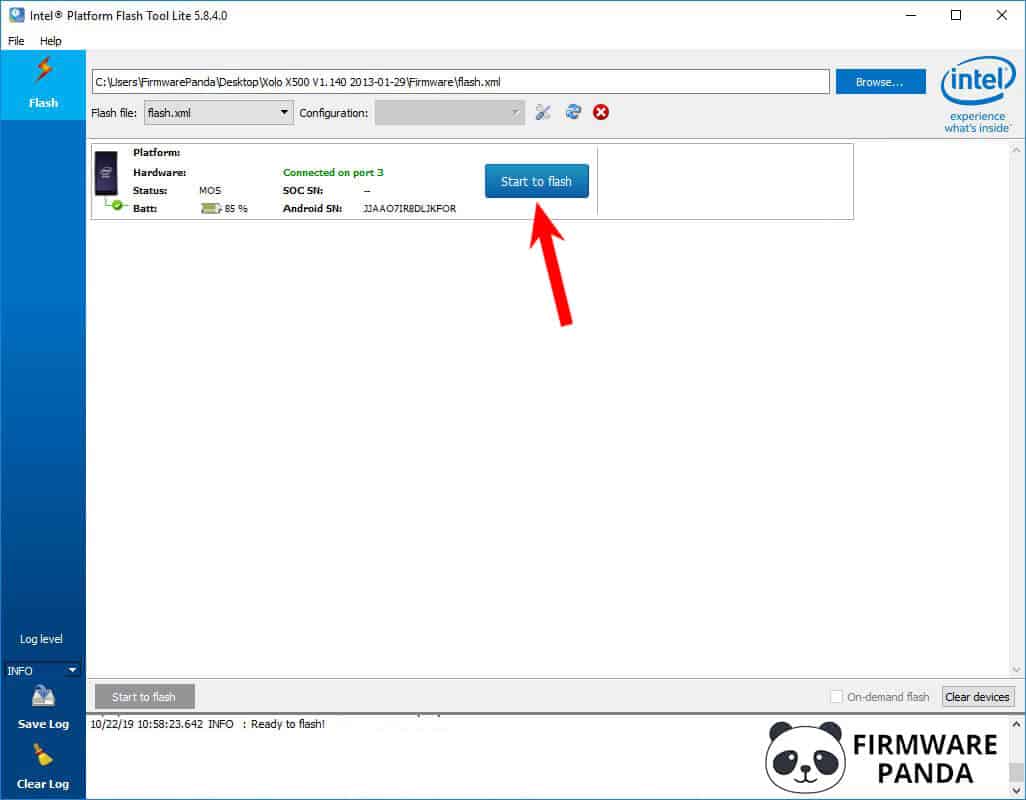
Step 10: Now the Intel Flash Tool will flash the Stock ROM Firmware to your Android phone. You can check the flashing progress in the tool.

Step 11: Once the flashing process is complete, you will see a success message on the screen.
Step 12: Now close the Intel Platform Flash Tool and disconnect your Intel Android Smartphone from computer and power it on.
Congratulations! Now you have successfully flashed Stock ROM using Intel Phone Flash Tool (Intel Platform Flash Tool) on your Android Smartphone or Tablet.