• Skip to primary navigation
  • Skip to main content
  • Skip to primary sidebar

Firmware Panda

Database of Android Stock ROM Firmware for all Android Devices

  • Home
  • Samsung
  • Itel
  • OnePlus
  • Symphony
  • Oppo
  • Vivo
Home › How to Flash Stock ROM Using Asus Zenfone Flash Tool

How to Flash Stock ROM Using Asus Zenfone Flash Tool

This page shows a step by step tutorial on how to flash stock firmware on Asus Smartphone and Tablets using Windows computer.

How To Flash Stock Firmware Using Asus Zenfone Flash Tool - How to Flash Stock ROM Using Asus Zenfone Flash Tool

Before you proceed to install Stock ROM using Asus Zenfone Flash Tool, it is recommended to follow the below-mentioned preparation steps for smoother flashing process.

Preparation:

  • It is recommended to take a backup of your important data to a safe place.
  • Make sure your phone or tablet is sufficiently charged. It is recommended to charge your phone to at least 60% – 70% before flashing firmware.

How to use Asus Zenfone Flash Tool to Flash Firmware

Step 1: Download and install the Asus USB Driver on your computer. If you already have Asus USB Drivers installed, then skip this step.

How To Flash Stock Firmware Using Asus Zenfone Flash Tool - How to Flash Stock ROM Using Asus Zenfone Flash Tool

Step 2: Download the Asus Stock ROM Firmware suitable for your phone or tablet from here to your Computer.

Step 3: Download and install Asus Zenfone Flash Tool on your computer.

How To Flash Stock Firmware Using Asus Zenfone Flash Tool - How to Flash Stock ROM Using Asus Zenfone Flash Tool

Step 4: Once the Asus Zenfone Flash Tool is installed on your computer, open it.

How To Flash Stock Firmware Using Asus Zenfone Flash Tool - How to Flash Stock ROM Using Asus Zenfone Flash Tool

How To Flash Stock Firmware Using Asus Zenfone Flash Tool - How to Flash Stock ROM Using Asus Zenfone Flash Tool

Step 5: Now connect your Asus smartphone or tablet to computer.

How To Flash Stock Firmware Using Asus Zenfone Flash Tool - How to Flash Stock ROM Using Asus Zenfone Flash Tool

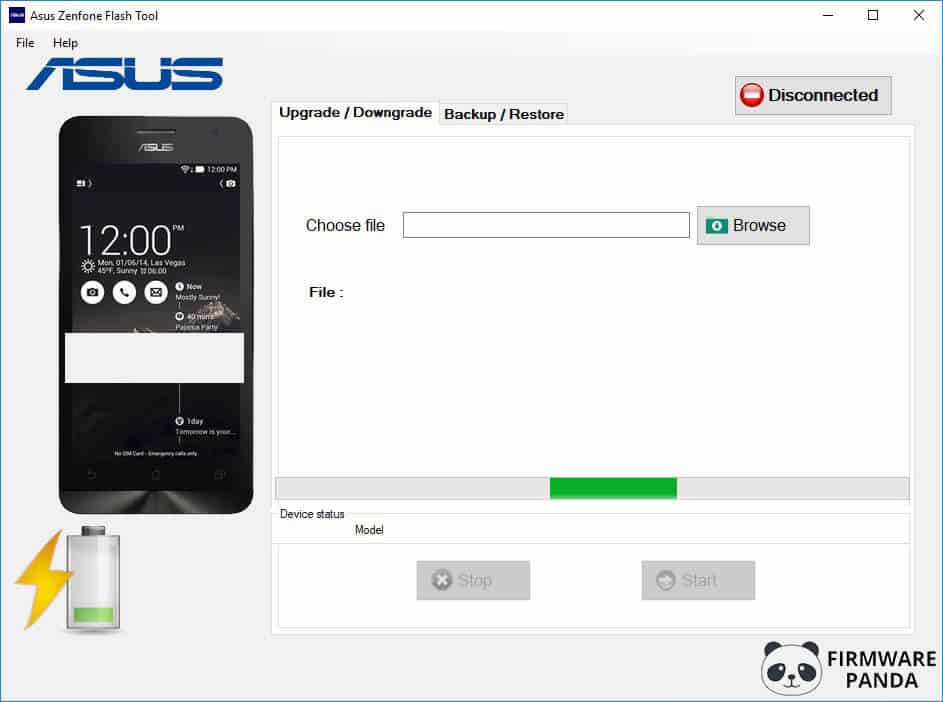
Step 6: Now click on “Disconnected” button to connect your phone with the tool.

How To Flash Stock Firmware Using Asus Zenfone Flash Tool - How to Flash Stock ROM Using Asus Zenfone Flash Tool

How To Flash Stock Firmware Using Asus Zenfone Flash Tool - How to Flash Stock ROM Using Asus Zenfone Flash Tool

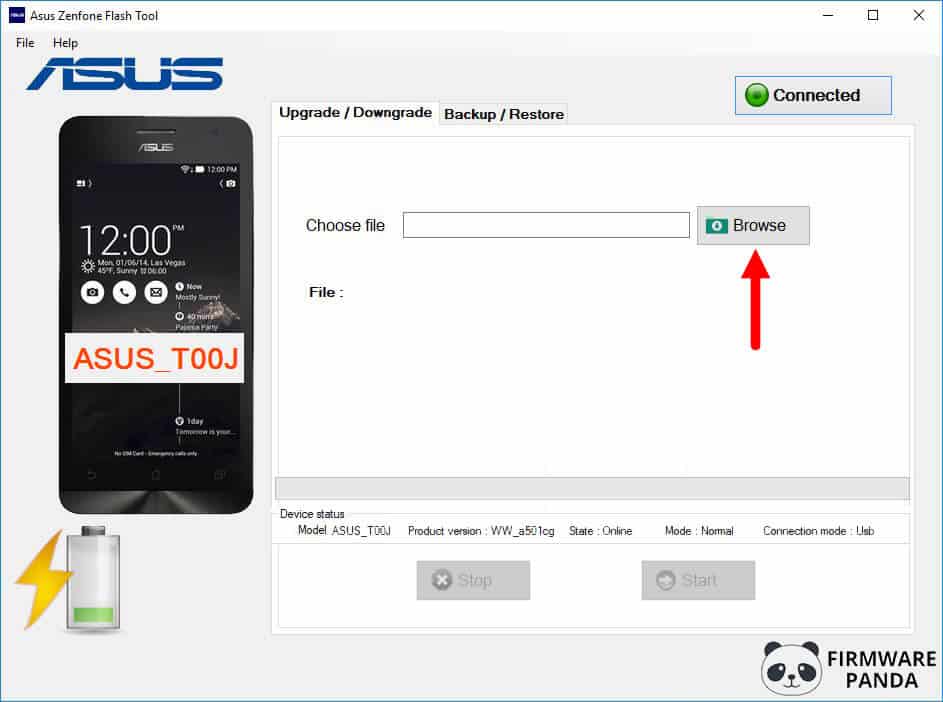
Step 7: Now click on the “Browse” button and locate the Asus Firmware which you have downloaded in Step #2.
How To Flash Stock Firmware Using Asus Zenfone Flash Tool - How to Flash Stock ROM Using Asus Zenfone Flash Tool

Step 8: Once the firmware is loaded click on the “Start” button to begin the flashing process.

How To Flash Stock Firmware Using Asus Zenfone Flash Tool - How to Flash Stock ROM Using Asus Zenfone Flash Tool

Step 9: Now, your device will restart automatically.

Step 10: Now press and hold Volume Down and Volume Up buttons to boot into Recovery Mode.

How To Flash Stock Firmware Using Asus Zenfone Flash Tool - How to Flash Stock ROM Using Asus Zenfone Flash Tool

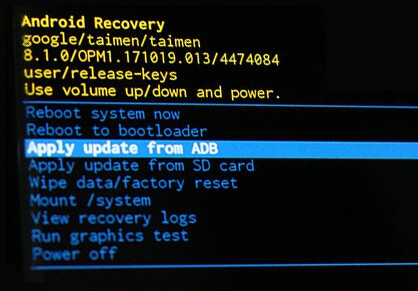
Step 11: In recovery mode, select “Apply update from ADB“.
How To Flash Stock Firmware Using Asus Zenfone Flash Tool - How to Flash Stock ROM Using Asus Zenfone Flash Tool

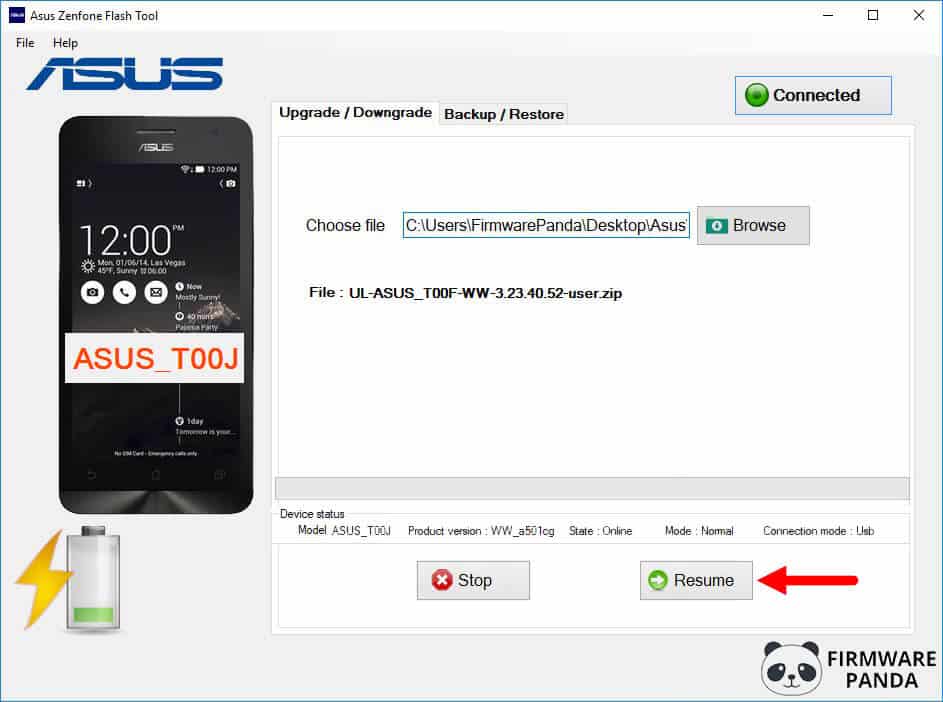
Step 12: Now click on the “Resume” button to resume the flashing process.
How To Flash Stock Firmware Using Asus Zenfone Flash Tool - How to Flash Stock ROM Using Asus Zenfone Flash Tool

The flashing process may take up to 5-10 minutes to finish. When it is done, disconnect your phone from the computer and restart it.

Congratulations! Now you have successfully flashed firmware using Asus Zenfone Flash Tool on your Asus Smartphone or Tablet.

Primary Sidebar

Select a Device Manufacturer

  • Privacy Policy
  • About
  • Contact Us
  • Sitemap

Copyright © 2026. Firmware Panda | This site is not affiliated with Google or any of the device manufacturers listed on this site.